

A polished layout can still fail if an applicant tracking system (ATS) can’t read it clearly. Choose an ATS-friendly resume template in Google Docs with a simple, single-column structure, standard section headings, and relevant keywords. Put contact details in the document body, and avoid tables, images, and text boxes.
Visual style matters, but your resume also needs to make your experience easy to scan and parse. The right template gives you a clean starting point without forcing your career into a layout that doesn’t fit.
Learn how to edit a Google Docs template to make your resume more ATS-friendly, then choose a free option that suits your industry, career stage, and preferred layout. This guide covers choices for students, early-career applicants, and experienced professionals, along with ways to tailor the structure to each role.
Key Takeaways
- Choose a file format based on the employer’s application instructions, and know when a Google Docs sharing link may create access issues.
- Use a free template as a starting point, then adjust its structure and wording to fit the role.
- Match your template to your industry and career stage, from student projects to an experienced professional’s track record.
- Compare layouts to find one that makes your most relevant qualifications easy to scan.
How to make an ATS resume in Google Docs?
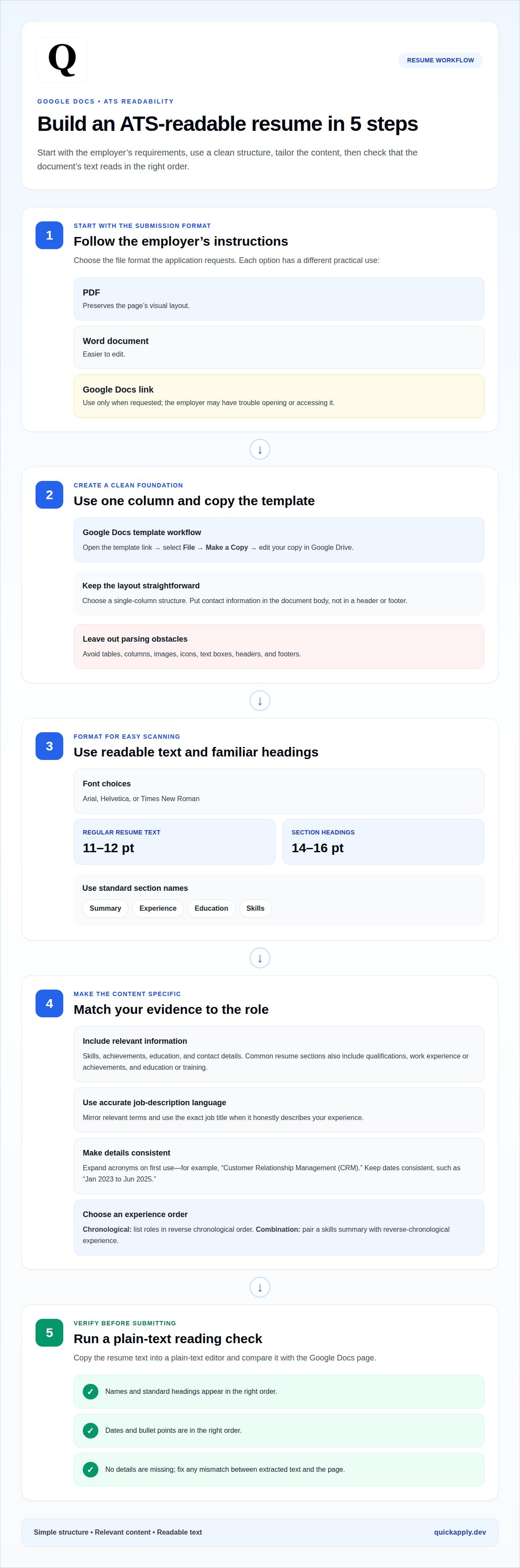
Start with the file format the employer requests. A PDF preserves the page’s visual layout, while a Word document is easier to edit. Use a Google Docs link only when the application requests one, since the employer may have trouble opening it or accessing the document. A clean, single-column ATS-friendly resume template in Google Docs is a practical starting point.
Choose one column rather than two. Applicant tracking systems may misread columns and tables, scrambling or omitting details. To open and copy a Google Docs template, open its link, select File → Make a Copy, then edit your Drive copy. Keep contact information in the document body, not in a header or footer.
Use Arial, Helvetica, or Times New Roman for readable text. Set regular resume text to 11-12 pt and section headings to 14-16 pt. Use standard headings such as Summary, Experience, Education, and Skills. Avoid images, icons, text boxes, tables, columns, headers, and footers. The U.S. Department of Labor lists contact information, qualifications, work experience or achievements, and education or training among commonly included resume sections.
Include relevant skills, achievements, education, and contact details. Tailor wording to the application: mirror accurate job-description terms and use the exact job title when it honestly describes your experience. Expand acronyms on first use, such as “Customer Relationship Management (CRM).” Keep dates consistent, for example, “Jan 2023 to Jun 2025.” List roles in reverse chronological order for a chronological resume. A combination format can pair a skills summary with reverse-chronological experience.
To check whether the document is ATS-readable, copy its text into a plain-text editor. Make sure names, headings, dates, and bullet points appear in the right order, with no missing details. Compare the extracted text with the Google Docs page and fix any mismatch before applying.
Free ATS-friendly Google Docs resume templates
Free templates save setup time and provide a structure you can customize. Google Docs includes resume designs in its Template gallery. Open Docs, select the gallery, and choose a layout to create a working document. For a template shared as a link, open it and select File → Make a Copy. Save the copy in Google Drive, then replace the sample text with your own skills, experience, and education.
Built-in designs are convenient, but inspect the layout before filling in every section. A template can look polished yet arrange information in a way that’s hard to scan. Keep headings recognizable, remove unnecessary decorative elements, and use the space for evidence relevant to the application. A focused summary and specific achievements are more useful than generic sample wording.
- Google Docs Template gallery: Use its built-in resume designs to start quickly and edit the document in Docs.
- ATS Resume template: This two-page option provides room for experience, education, and skills without compressing every detail.
- Bullet-style resume template: Its keyword-friendly, easy-to-scan structure suits applicants who want clear accomplishment statements.
These choices are starting points, not finished applications. Adapt each section to the role and industry: prioritize technical skills for a software opening, or customer-facing achievements for a service position. Delete unused prompts, replace broad phrases with relevant job-description language, and keep each bullet focused on an outcome or responsibility. Before submitting, download the document in the format requested by the employer. If you’re applying to different roles, keep a separate tailored copy for each position instead of overwriting your base resume. For a faster way to adapt resume content to a specific job, try tailoring your resume to the job description.
Templates for different industries and career levels
A useful resume template reflects both your target role and career stage. A data scientist’s skills and project evidence differ from a technical program manager’s leadership record. Start with a Google Docs layout that supports your strongest qualifications, then edit its sections to emphasize relevant experience, education, and role-specific keywords. Keep the structure readable and make the content specific to the employer.
For an entry-level data scientist resume, prioritize Python, SQL, Excel, and academic projects. Place relevant coursework or project outcomes where a recruiter can find them quickly. A technical program manager template should balance technical skills with leadership examples, such as coordinating delivery across engineering teams. These examples show how industry-specific templates can shape emphasis without changing the document’s basic structure.
- Student or recent graduate: Use a student-focused layout to highlight academic performance, projects, and relevant coursework. Add internships or campus experience when they support the target career.
- Entry-level data scientist: Choose a template that gives Python, SQL, Excel, and academic projects clear space. Connect each skill to a project or practical result.
- Technical program manager: Select a format that makes leadership and technical skills visible together. Include examples that show both areas in action.
Career level changes what deserves the most space. An experienced-hire template aimed at professionals with 3-10 years of experience can give work history and measurable contributions more prominence. A student template instead makes education, projects, and coursework central. Match the layout to your evidence, not just your job title. During editing, remove sample prompts that don’t apply and replace them with examples relevant to the role.
Use industry-specific resume examples as content guides, not text to copy. For a data science application, explain how a project used Python or SQL; for program management, describe a technical initiative and your contribution as a leader. Compare the job posting’s keywords with your actual experience, and keep only terms that accurately describe your skills. Adjust the summary and section order to make your closest match easy to spot. A focused template helps employers scan your fit without obscuring what makes your career distinct.
Choosing a Google Docs template by layout and career stage
Choose a template by asking what a recruiter should notice first. A student may lead with education and projects, while an experienced applicant may foreground relevant work. Then assess the layout: does it make those details easy to scan and keep them in a clear reading order? A simple design can still feel distinctive through spacing, concise headings, and focused content.
Use your career stage to decide which sections deserve the most space:
- Student: Highlight academic performance, relevant coursework, and projects before a short work history. Put experience first only when it strongly matches the role.
- Early career: Give internships, practical projects, and role-related skills visible space. Use education to support your qualifications, not to crowd out useful experience.
- Experienced professional: Lead with a concise summary and relevant achievements. A template aimed at professionals with 3-10 years of experience can help balance work history and skills.
Next, match the layout to your content. A chronological structure suits a career with relevant roles that build over time. A combination structure can foreground skills while retaining a clear work history. For example, a technical program manager can highlight leadership and technical skills, then show the roles that support them. Use standard headings so people and screening software can identify each section.
Google Docs makes it easy to change colors, spacing, text blocks, and section order. Use those controls to highlight your strongest evidence, not to add visual complexity. A student can move projects above unrelated experience; an experienced applicant can place relevant achievements near the top. Keep separate document copies for different positions, then tailor the summary and keywords to each application. The layout stays consistent while the evidence shifts to match the role.
Once your resume structure fits the role, create a matching cover letter that carries the same relevant strengths into your application. Use Cover Letter Generation to build a job-specific letter.
QuickApply: Resume Tailoring
QuickApply helps turn a solid template into a resume tailored to a specific job description. Use Resume Tailoring when applying for a role to align your relevant experience and skills with its requirements. The platform also generates cover letters for specific job descriptions, helping your application materials stay focused.
After tailoring your resume, use the Application Tracker to organize applications or Interview Practice to prepare to discuss your experience. These tools support different stages of the job search, from customizing documents to getting ready for interviews. Keep your examples accurate and make sure every skill or achievement reflects your actual background.
If you’d like help streamlining your applications, contact QuickApply.
Put Your Next Application in Motion
Let each application sharpen your story. Treat an ATS-friendly resume template in Google Docs as a flexible starting point, then adjust the details to reflect the role you want next. You don’t need to make every version look different. Make your most relevant experience easy to find and clearly connect it to the opportunity.
Before sending an application, pause for a final content review. Check that your examples represent your work accurately, your strongest qualifications appear early, and the document is tailored to the position rather than a generic target. Carry that same focus into your next step, whether you’re preparing another application or getting ready to discuss your experience.
When you want support preparing job-specific materials, contact QuickApply for resume help. Keep moving forward with a clear, tailored application and a story that sounds like you.
Frequently Asked Questions
What is an ATS-friendly resume template?
An ATS-friendly resume template organizes your experience in a text-based document that applicant tracking software can process into fields. It provides a predictable structure for details such as job titles, employers, dates, and qualifications. For example, a clearly labeled “Work Experience” section distinguishes employment history from a “Projects” section, making your information easier to interpret and review.
Where can I find free ATS-friendly resume templates in Google Docs?
Find free options in the Google Docs Template gallery, which includes built-in resume designs. You can also use a template shared through a document link and create your own copy in Google Drive. Before editing, review the sample content and section order. Choose a design you can adapt to your background instead of keeping placeholder text or sections that don’t fit.
What resume formats and layouts are most compatible with ATS software?
A simple, single-column layout with familiar section labels is a practical choice for ATS screening. Chronological resumes suit applicants whose relevant work history shows a clear progression. A combination format can make skills more visible while still showing employment history. Keep each role’s title, employer, and dates together in the text flow so software can associate those details correctly.
How do I customize a Google Docs resume template for a specific job?
Start by identifying the employer’s core requirements, then connect each one to truthful evidence from your background. For a data analyst opening, emphasize relevant analysis tools and a project that demonstrates how you used them. Adjust the summary and section order to put the closest match earlier. Keep the wording natural, and don’t add a skill or job title just because it appears in the posting.
Should I submit an ATS-friendly resume as a Google Docs file or PDF?
Submit the file type requested in the application. If the portal accepts uploads but gives no preference, use a supported document format, such as PDF or Word. A Google Docs sharing link works when the employer asks for one, but access depends on permissions and connectivity. For an upload, attach the file rather than assuming a reviewer can open a private link.
What common Google Docs resume formatting mistakes can cause ATS parsing problems?
Formatting that separates related information can confuse text extraction. For example, a job title in one column and its employer in another may no longer read as a single entry. Contact details placed only in a header or footer may also be missed. Don’t rely on icons to communicate meaning, and keep labels beside their content, such as “Email” followed by your address.


