

A recruiter replies, and you remember the company but not which tailored resume you sent. Now you’re searching through files with nearly identical names while details of the role and application blur together. Learning how to track which resume version was sent to which company solves that problem before the next reply lands.
Resume files, cover letters, and application notes can quickly end up scattered across folders and platforms. A simple record brings them together by linking each application to the exact resume version, role, company, and relevant context. You don’t need an elaborate database, just a repeatable system you can update as you apply.
This guide explains what to record, how to name and find resume versions, and how to keep the process manageable. You’ll also learn when an application tracker can help organize a larger search and how QuickApply connects tailored resumes and cover letters with application tracking.
Key Takeaways
- Link each application to its role, date, and submitted file so you can recall which resume version went to which company.
- Use a consistent filename pattern to recognize tailored resumes across folders and devices.
- Compare folders, spreadsheets, and application trackers to choose a system that fits your search habits and keeps details searchable.
- Follow a quick send-and-log workflow to verify the resume and cover letter before recording each application.
- QuickApply brings AI resume and cover letter tailoring together with application tracking.
Why tracking each resume version by company matters
Resume-version tracking means linking the exact file you submitted to the company, role, and application date. It turns a folder of tailored documents into a searchable record you can use when a recruiter replies weeks later. A saved draft shows what you prepared; the final file you submitted tells you what the employer received.
A complete application record connects the submitted file to the role, company, and submission context, so you can quickly recall what you sent and how you applied. Applications may pass through an Applicant Tracking System (ATS) before a recruiter reviews them. If a conversation moves forward, you can revisit the resume’s emphasis and the role’s requirements instead of relying on memory.
What information belongs in a resume submission record?
Capture enough detail to identify the application and retrieve its materials without turning logging into a second job. Include:
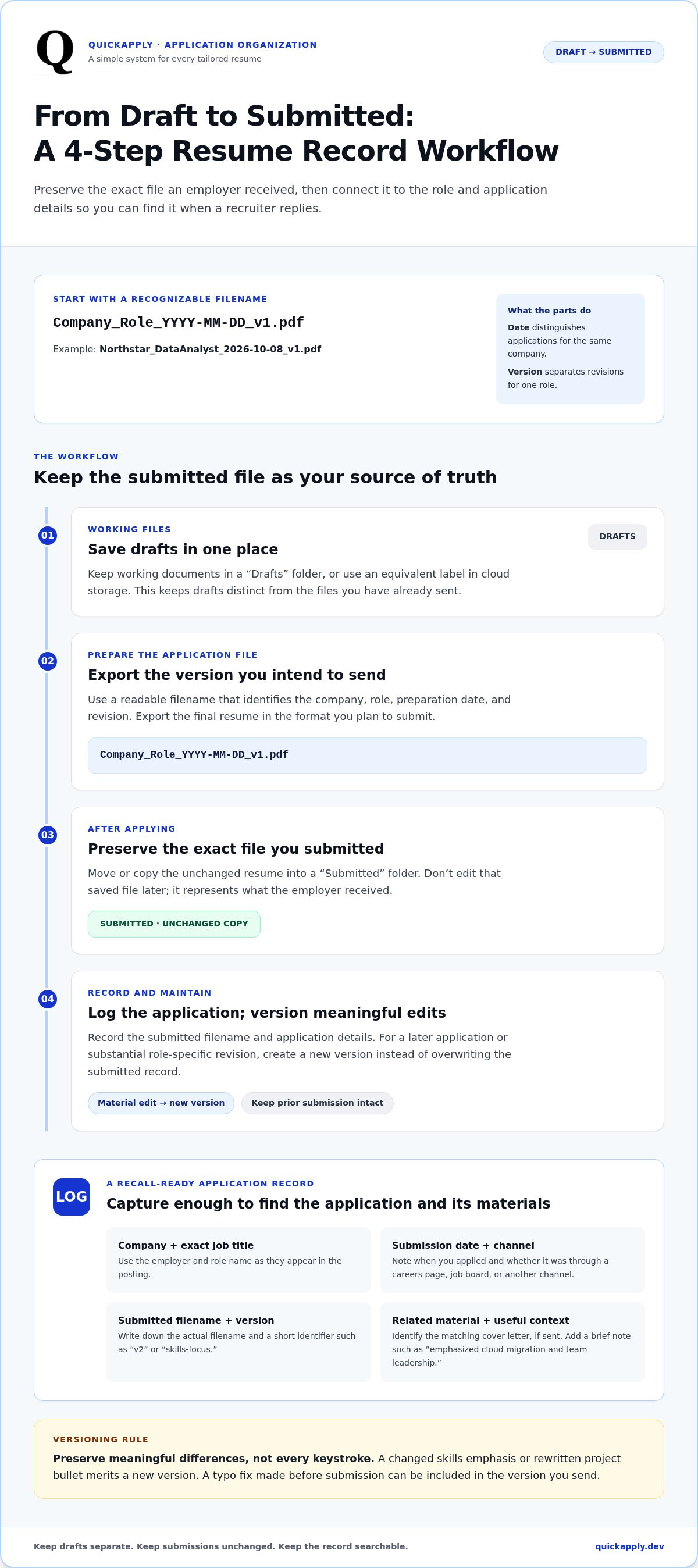
- Company and exact job title: Use the employer name and role title as they appear in the posting.
- Submission date and channel: Record when you applied and whether you used the company careers page, a job board, or another channel.
- Submitted filename and version identifier: Note the actual filename and a short label such as “v2” or “skills-focus.”
- Related material: Identify the matching cover letter, if you sent one, and add a brief note when it helps explain the application.
Keep the record focused on recall. A note like “emphasized cloud migration and team leadership” can help you remember the resume’s angle. A full copy of the job description usually isn’t necessary if you can still access the posting.
Why tailored resume drafts become hard to distinguish
Tailoring often involves changing only a few details: moving a skill higher, adjusting a project description, or reflecting language from the job posting. Those edits can produce several documents that look almost identical at a glance. Filenames like “final,” “final-new,” and “latest” quickly turn into guesswork.
The confusion grows when the resume draft is in one folder, the cover letter in another, and application notes in a browser tab or message thread. When an employer responds, you may remember applying but not which version you sent. Searching takes longer, and it’s harder to reconnect the conversation to the materials you submitted.
Use the submission as your source of truth. Before applying, save the version you intend to send. After submitting, record the filename and application details, then mark that file as submitted rather than leaving it mixed in with working drafts. That simple distinction separates “ready to send” from “sent,” making future recall more reliable.
How to name and preserve each resume version
A reliable filename identifies the application without making you open several files to find the right one. Use a consistent pattern: Company_Role_YYYY-MM-DD_v1.pdf. For example, Northstar_DataAnalyst_2026-10-08_v1.pdf tells you which company and role the resume targets, when you prepared it, and which revision it is.
Dates and version numbers serve different purposes. The date distinguishes applications for the same company, while the version number separates revisions for one role. If you update a draft before submitting, save it as v2 rather than replacing v1. Keep filenames readable across folders and devices by using simple separators such as underscores, and avoid special characters that may behave differently across systems. Don’t put sensitive personal information in a filename; your name, address, or phone number isn’t needed there.
Use a filename that identifies the application at a glance
Keep the order of filename elements consistent so you can scan them quickly. Shorten long company or job titles carefully, using labels you’ll recognize later. For example, use Northstar_DataAnalyst rather than a vague name like Resume_Analytics. Add the date and version label so each file is searchable without relying on memory.
Rule: Create a new version when a material, role-specific edit changes the resume you plan to submit. A changed skills emphasis or rewritten project bullet merits a new version. A typo fix made before submission can be included in the version you send. The goal is to preserve meaningful differences, not create a new file for every keystroke.
Keep drafts separate from the submitted resume
Use separate folders, such as “Drafts” and “Submitted,” or apply equivalent labels in cloud storage. Before sending, export the final resume in the format you’ll submit. After applying, preserve that exact file in the submitted location. Don’t edit it in place later; duplicate it and create a new version for another application.
This separation prevents a common mix-up: editing a once-submitted file and later assuming the changed copy matches what the employer received. Use a simple workflow:
- Save working documents in your drafts location.
- Export the application-ready resume with the company, role, date, and version in the filename.
- Submit that file, then move or copy the unchanged version into your submitted location.
- For a later application or substantial revision, start a new version instead of overwriting the record.
Tailoring can change keywords, formatting, and which experience gets emphasis. The University of Illinois Chicago’s Optimizing Resumes for Applicant Tracking Systems offers guidance on preparing resumes for these systems. A consistent naming and storage workflow also pairs naturally with resume tailoring and application tracking, keeping preparation and recordkeeping in a more consistent process.
Spreadsheet, folders, or application tracker: which system works?
The right system is the one you’ll update consistently and can search when a reply arrives. Folders preserve files, spreadsheets make application details sortable, and application trackers structure job-search records in a dedicated workflow. You can combine methods, such as keeping submitted resumes in folders and using a spreadsheet to point to each file. Choose based on how much context you need and how much manual upkeep you’re willing to do.
| System | Strengths | Trade-offs |
|---|---|---|
| Folders | Fast to set up; keeps drafts and submitted documents organized in one location. | Finding an application’s context can mean opening files or searching folder by folder. |
| Spreadsheet | Sortable and searchable; one row can connect each application to its resume filename and notes. | You must enter and maintain details yourself, and linked files still need a consistent storage location. |
| Application tracker | Structures job details and application progress in a dedicated workflow. | Setup and available features vary; preserve the exact submitted file separately as part of your record. |
When a folder-and-spreadsheet workflow is enough
For a small, straightforward search, start with one spreadsheet row per application. Add the company, job title, submission date, status, and submitted filename. Store sent documents in a “Submitted” folder, separate from working drafts, then use the filename or file path in the row to find the resume. This setup is flexible and easy to customize, but it depends on logging each application and keeping filenames or links current.
When an application tracker can reduce admin
As applications and follow-up details accumulate, a tracker can make records easier to scan and manage in one workflow. Keep the company, role, date, and status together, while also saving the exact resume and cover letter you submitted. Record the filename or storage location so you can retrieve those files when needed. For a wider view of organizing each stage, the job application process guide adds broader workflow context.
A practical rule: if updating your spreadsheet feels simple and you can retrieve a submitted resume quickly, keep using it. If you’re missing entries, duplicating records, or spending too long reconstructing application context, move to a tracker. Whichever method you choose, connect each application to a preserved file and a searchable record.
A repeatable send-and-log workflow for every application
Make tracking part of submitting, not a cleanup task for later. A consistent sequence connects the resume you tailored to the file you sent and the conversation that may follow. Use this workflow for every application, whether you track details in a spreadsheet, folders, or an application tracker.
- Review the job description. Note the company, exact role title, and requirements you’ll address in your materials.
- Tailor the resume. Make role-specific edits, then save the draft as a distinct version. The AI resume tailoring strategy offers more guidance on aligning edits with a job description.
- Prepare the cover letter. If the application calls for one, make sure it matches the same company and role as the resume.
- Export the files. Save the resume and cover letter in the formats you plan to submit, using clear filenames that identify the application.
- Run a pre-send check. Confirm the company, role, resume file, and accompanying cover letter before uploading or attaching anything.
- Submit, then log. Once the application is sent, record the final file details, date, channel, and current stage while everything is fresh.
Run a final check before submitting
Pause before clicking submit. Open the exported resume, not just the editable draft, and verify that it’s the intended final version. Check that the filename matches the application record and that the content is appropriate for this employer. Confirm that the cover letter, if included, names the correct company and role too.
After submission, note the date and channel, such as the company careers page or a job board. Your own saved file and record should be the source of truth for what you sent.
Log the submission and keep its context together
Update one application record immediately after submitting. Include the company, exact role, submission date, application channel, filename or version identifier, and stage, such as “applied.” Add a short note that will help you pick up the thread later: “Highlighted data pipeline work” or “Recruiter requested portfolio.” Keep it concise and useful.
Revise the record as the application moves forward, pauses, or closes. If you receive a reply, add the date and a brief summary of what’s next. This creates a clear history without relying on your inbox or memory to reconstruct the sequence.
To connect tailored materials with application tracking, explore QuickApply’s job-search workflow.
Use QuickApply to bring resume tailoring and job tracking together
You have a practical tracking method. The next challenge is keeping it consistent while creating role-specific application materials. QuickApply brings AI-powered resume and cover letter tailoring together with an application tracker, giving you a single workflow for preparing applications and managing your search.
Connecting these steps can reduce the friction between customizing a document and recording the application. Tailor your materials to a job description, then use the tracker to manage that opportunity alongside your other applications. The goal isn’t to replace your own version-control habits, but to make a structured process easier to maintain as your search grows.
Connect tailored materials with an organized search
Each role may call for a different emphasis. QuickApply tailors resumes and cover letters to job descriptions, helping you prepare materials for the opportunity in front of you. Its match score offers another point of reference as you review how your experience aligns with the role. The application tracker helps keep your search organized in one place instead of splitting job details across unrelated notes and documents.
Keep exact-file recall in your own workflow. Save the final resume you submitted and record its filename or version identifier with the application. The tracker helps you manage your search, while your preserved copy remains the reliable record of what the employer received.
Start tracking applications with less manual overhead
Begin with a consistent record for every new application. As you prepare a role-specific resume and cover letter, capture the company, job title, submission date, channel, and identifier for the final file. After applying, update the application’s stage and add a short note about the material’s focus or any useful interaction. This keeps your records actionable without turning each entry into a long report.
Use the same sequence each time: tailor, review, submit, preserve the exact file, then update the tracker. That pairing gives you a repeatable application routine and a personal record of which resume version went to each company. Active subscribers have access to unlimited resume versions and cover letter generations, supporting ongoing customization as new opportunities arise.
Bring your materials and application tracking into a more organized workflow with QuickApply.
Make your next application easier to recall
Your next reply shouldn’t send you digging through folders or guessing which version you submitted. Make the record part of the application itself: capture the context while it’s fresh and preserve the final file so you can return to it with confidence. That habit turns how to track which resume version was sent to which company into a repeatable part of your search, not another task to reconstruct later.
If you want less manual overhead, QuickApply combines AI-powered resume tailoring for specific job descriptions with an application tracker to help manage your search in one place. Active subscribers can generate unlimited resume versions and cover letters as opportunities arise. Keep your own record of the exact file you submit, then use a consistent tracking workflow to stay organized.
Organize your job search with QuickApply and make your next application easier to manage.
Frequently Asked Questions
How can I find the exact resume I submitted through LinkedIn?
Start with the application date and role in your records, then search your saved files for the matching company name and version identifier. Don’t rely on LinkedIn as your only copy of the original document. If you can’t find the file, compare your saved notes with the submission confirmation email to identify the closest match. Mark any uncertainty clearly, and preserve a verified final copy for each application going forward.
Should I save a new resume file for every job application?
Save a distinct final file when you make meaningful, role-specific changes for an application. That gives you a stable reference instead of letting later edits change the copy you remember sending. You don’t need a new file for every small drafting adjustment. Keep routine edits in your working draft, then save and label the final version separately when it’s ready to submit.
Can a spreadsheet track which resume I sent to each company?
Yes. A spreadsheet is a straightforward way to track which resume version went to which company. Give each application its own row, then add columns for employer, role, date, channel, and filename. If your storage system supports it, link directly to the saved document. You can also filter by company or status when reviewing applications. The key is to record the entry right after you apply.
What should I do if I cannot find the resume version I sent?
Search your resume folders and saved application materials using the company, role title, and approximate submission date. Look for an exported PDF or other final copy, not only editable drafts. If the exact file is missing, don’t describe a reconstructed document as an exact match. Note what you could verify and what remains uncertain, then adjust your process so future submissions leave a preserved copy and a clear record.
Is it better to track resume versions in folders or an application tracker?
Folders are useful for storing documents, while a spreadsheet or application tracker can connect documents with application details and progress. You can combine them: keep files in folders and use a record to identify the relevant copy. Consider how you prefer to search and how often you’ll update the system. Whichever setup you choose, make sure each application points to a specific final file, not just a general folder.
How do I track several applications to the same company?
Create a separate record for each role, even if the employer is the same. Distinguish entries with the exact job title, application date, and resume identifier. Two roles at one company may emphasize different skills, so a company-only label won’t be enough to tell them apart. You can group records by employer for easier scanning, but keep each application’s notes and submitted materials individually identifiable.


