
What if the best job-search automation didn’t send a single email for you? It simply made sure you remembered to send the right one. Setting automated follow-up reminders for jobs can help, but only when each reminder has the right timing and context. Otherwise, a thoughtful check-in can become an awkward nudge.
Following up can help keep an application moving, but it’s easy to lose track when emails, job boards, and interview notes are scattered. Reaching out too soon is another risk. The fix isn’t more inbox checking. It’s a simple system that automates the reminder, not the relationship.
This guide shows you how to set follow-up dates around application and interview milestones, choose a sensible wait, and save the details you’ll need to write a concise, personalized message. You’ll organize applications and next actions using a calendar or task tool alongside an application tracker. QuickApply’s tracker can help organize job-search progress, but confirm any reminder or notification features before relying on them.
Key Takeaways
- Keep reminders as prompts for a human-approved next step, not automatic messages sent on your behalf.
- When setting automated follow-up reminders for jobs, record the role, latest interaction, chosen trigger, and action in one reliable workflow.
- Compare calendars, email flags, task apps, and job trackers by how well they retain context and make upcoming follow-ups visible.
- Use each reminder to write a brief, personalized message that refers to the application or conversation and respects the employer’s timeline.
- Review active applications regularly, clear overdue tasks, and use an application tracker such as QuickApply to keep role details and progress organized.
Why job follow-up reminders matter, and what they should automate
A job search creates a queue of moving parts: applications submitted through different sites, recruiter emails, interview details, and next steps discussed on calls. Without a reliable record, it’s easy to miss a task or forget its context. A reminder system gives each application a visible next action instead of leaving you to rely on memory.
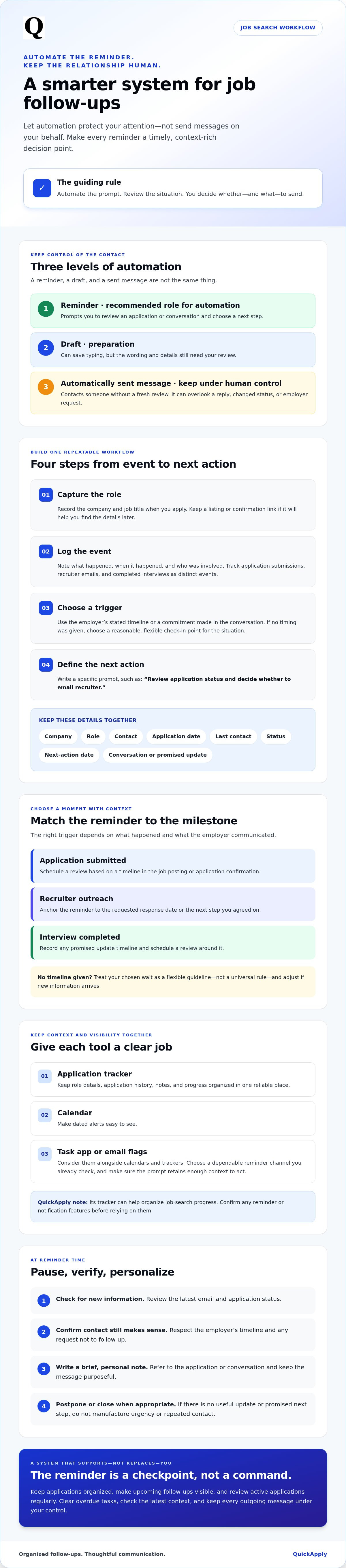
An automated follow-up reminder is a scheduled prompt to review an application or conversation and decide on a human-approved next step. It can tell you when to check in, but it shouldn’t make the decision for you.
A reminder prompts a decision; a draft prepares a message; an automatically sent message contacts someone without a fresh review. These are different levels of automation. A draft can save typing, while a reminder protects your attention. Keep outgoing messages under your control because they affect a real relationship. Clear, purposeful writing aligns with professional communication standards, but the right message still depends on the actual exchange.
Which job-search moments deserve a reminder?
Use setting automated follow-up reminders for jobs when there’s a specific action to take or a reasonable point to reassess. That might be checking in after submitting an application, replying to a recruiter, sending a thank-you after an interview, or completing a next step you promised to handle.
Record who initiated the conversation and when you last had meaningful contact. For example, if a recruiter says they’ll share an update after an interview, note that commitment before deciding whether you need to follow up. If there’s no clear action or follow-up point, don’t add a reminder just to fill the calendar.
What should stay under your control?
Before sending anything, review the recipient, wording, and timing. A recruiter may have given you a specific timeline, replied in the meantime, or asked you not to follow up. An automatic message that overlooks any of those details can feel impersonal or premature, even if the original reminder was well timed.
Use the alert as a decision checkpoint, not a command. Check the latest email or application status, confirm that contact still makes sense, then write a concise note tied to the conversation. If there’s no useful update to share and no promised next step to revisit, postpone the task or close it. The system should help prevent missed follow-ups, not manufacture urgency or repeated contact.
How to set up automated job follow-up reminders step by step
Build the workflow once, then use it for each role. The goal is to keep application details in one reliable place and use a dependable channel for reminders, rather than creating disconnected alerts. A tracker paired with a calendar or task app works well: store job context in the tracker, then schedule prompts in a tool you already check.
- Capture the role. Record the company and job title as soon as you apply. Add a link to the listing or application confirmation if it will help you find the details later.
- Log the event. Note what happened, when it happened, and who was involved. An application submission, recruiter email, and completed interview each deserve their own entry.
- Choose a trigger. Set a date based on the employer’s stated timeline or a commitment made in the conversation. If no timing was given, choose a reasonable check-in point for the situation and adjust it if new information arrives.
- Define the next action. Make the reminder specific, such as “Review application status and decide whether to email recruiter.” A vague alert like “Follow up” gives you no context and invites guesswork.
A useful follow-up reminder needs the role, the last meaningful event, a date to review it, and a clear next action. Keep these details together: company, role, contact, application date, last contact, status, and next-action date. Add a brief note about the conversation or any promised update so you can act without searching through old messages.
Create a trigger for each application stage
Use different triggers for application submission, recruiter outreach, and interview completion. For an application, schedule a review based on a timeline in the job posting or confirmation. After recruiter outreach, anchor the reminder to the requested response date or your agreed next step. After an interview, note any update timeline and schedule a review around it. If no timeline exists, treat your chosen wait as a flexible guideline, not a universal rule.
Choose a reminder channel and test it
Calendars make dated alerts easy to see; task apps keep actions in a work queue; email flags stay close to the conversation; job trackers connect tasks with application context. Choose the option you’ll actually review. Avoid recording the same task in several places unless one is clearly the master record.
Before relying on alerts, check notification settings, time zone, and device permissions. Create a test reminder for a near-term task, then confirm that it appears where and when expected. QuickApply’s application tracker can help organize job details and progress. Verify reminder features separately before depending on it to send alerts.
Compare calendars, email, and job trackers for follow-up reminders
The right setup depends on how many applications you’re managing and where the relevant details live. A calendar may be enough for a small search with a few date-specific check-ins. As applications and conversations multiply, a tracker can make statuses easier to scan and help you avoid reconstructing context from scattered alerts. The table compares common options; actual features and privacy settings vary by tool.
| Tool | Setup effort | Context retention | Visibility | Repeated-use suitability | Privacy controls |
|---|---|---|---|---|---|
| Calendar | Low | Low to medium, depending on event notes | High for dated events | Good for a small number of scheduled tasks | Review calendar sharing and event visibility |
| Email flags or labels | Low | High for details in the original thread | Variable, based on inbox habits | Useful when follow-ups stem from specific emails | Review mailbox access and account settings |
| General task app | Medium | Medium, if you add role and contact details | High in a task list | Works for recurring review routines | Check workspace sharing and app permissions |
| Job application tracker | Medium upfront | High for role details and application progress | High across active applications | Useful when managing multiple roles over time | Check account access, sharing, and data settings |
When a calendar or email workflow is enough
Use a calendar event for a date-specific conversation or time-sensitive next action, such as reviewing an application after an employer’s stated update window. Email flags or labels are a natural fit when the context is in a recruiter’s message thread. Google Calendar, Microsoft Outlook, and Gmail are examples of third-party tools, not required parts of any particular job tracker. Avoid duplicating tasks unless you know which place is the source of truth.
When an application tracker adds useful context
If you’re managing multiple active applications, centralized statuses can show where each role stands and connect a follow-up task to the right company, contact, and progress update. QuickApply’s application tracker can help organize job-search activity. Reminder dates, notifications, or follow-up automation aren’t confirmed, so use a separate calendar or task tool for alerts unless you’ve verified those features.
For a broader way to structure your search, see a comprehensive job application process guide. Setting automated follow-up reminders for jobs works best when you choose a system you’ll maintain and check how its sharing and privacy controls handle your contact details and application notes.
Write professional follow-ups and prevent reminder mistakes
A reminder is a checkpoint, not a finished message. Open the latest thread, confirm the application status, then decide whether a note is still appropriate. Tie it to the role and your last meaningful exchange. Ask one clear question or share one relevant update. Before sending, check that the recipient and timing still make sense.
Use a clear, context-aware follow-up message
Keep the note brief and specific. Mention the job title and a detail from your application or conversation. When following up on an application, connect your interest to the role rather than sending a generic “just checking in.” If you have a relevant update to share, make sure it relates to the job description.
Application check-in: “Hello [Name], I applied for the [Role] position on [date] and remain interested in the opportunity. Could you share whether there’s an update on the hiring timeline? Thank you, [Your Name].”
Post-interview thank-you or update: “Hello [Name], thank you for speaking with me about the [Role] position. I appreciated learning about [specific topic]. I’m still very interested. Please let me know if I can provide anything else, or if there’s an update on the next steps. Best, [Your Name].”
Edit every template to match the actual conversation. Don’t imply a promise or discussion that didn’t happen. Setting automated follow-up reminders for jobs works best when the alert brings the right context forward and you decide whether and how to respond.
Avoid over-following and outdated alerts
Honor any timeline or communication preference the employer gave you. After each meaningful reply, update the application status and revise or remove the next reminder. This prevents a stale alert from prompting a duplicate message while the conversation is active.
- You receive a response: Pause the old reminder and log the new next step, if there is one.
- You’re rejected or withdraw: Close the application and cancel pending follow-ups.
- The timeline changes: Replace the old date with the new one the employer provided.
- You hear nothing: Follow your planned check-in, then use a stop rule. Don’t treat silence as permission for repeated messages; wait for a new reason or close the task.
Want one place to organize job-search progress alongside your chosen reminder tool? Explore QuickApply’s job-search tools, including its application tracker. Confirm reminder and notification features separately before relying on them.
Build a repeatable job follow-up system with QuickApply
A reminder workflow only works if you keep it current. Set a recurring weekly review in your chosen calendar or task tool, then use your application tracker as the reference point for each role. This keeps job details and progress together while your reminder tool prompts you to take the next step. QuickApply’s application tracker can help organize job-search activity, but verify its reminder and notification automation before relying on it for alerts.
Run a lightweight weekly reminder review
Keep the routine focused. Review active applications by next-action date, decide what to do with overdue items, and update each record before scheduling anything new.
- Review what’s due: Check applications with a next-action date coming up or already passed. Open the latest conversation before deciding whether to follow up.
- Clear outdated tasks: Cancel reminders for withdrawn applications or roles that are no longer active. Update outcomes when you receive a response.
- Capture new commitments: Add any timeline or next step mentioned in a recruiter conversation, then set a reminder only if there’s a useful action to take.
- Schedule justified next steps: Create a fresh prompt for a specific review or follow-up, not simply because another week has passed.
This routine should be easy to repeat during a busy search. If an alert no longer matches the application’s status, edit or remove it rather than letting it prompt unnecessary contact.
Connect follow-ups to the rest of the application workflow
Use the time between follow-ups to move other parts of your search forward. QuickApply offers resume tailoring and cover letter generation to help prepare role-specific application materials, as well as interview practice for an upcoming interview. These tools support preparation; they don’t replace your judgment about whether or when to contact an employer.
For a reliable system, keep role details and progress organized in the tracker, and manage alerts in your chosen calendar or task app. Before relying on any tracker to notify you, check whether it supports reminder dates or notifications. This distinction keeps your process accurate and avoids assuming a feature is available.
Ready to bring more structure to your job search? Explore QuickApply’s job-search platform and its application management and AI-powered tools. Pair the features that fit your workflow with a reminder channel you’ve confirmed works for you.
Keep Every Follow-Up Moving With a Simple System
A reliable job-search workflow doesn’t need to send messages for you. It needs to surface the right next step with enough context for you to decide whether and when to act. That’s the core of setting automated follow-up reminders for jobs: track each application, choose a clear review point, and keep the final message under your control.
Use one source of truth for role details and progress, then pair it with a calendar, task app, or email workflow that makes reminders easy to see. Review active applications regularly. Update or cancel alerts when you get a reply, the timeline changes, or an application is no longer active. Those small habits keep your system useful instead of noisy.
QuickApply can help organize job-search activity with an application tracker, AI-powered resume tailoring and cover letter generation, and interview practice tools. Verify reminder or notification features before relying on them. Explore QuickApply’s job-search tools to find resources that fit your workflow, and pair them with a reminder channel you’ve confirmed works for you.
Frequently Asked Questions
How do I set automated follow-up reminders for job applications?
Use a tracker as your source of truth and a calendar or task app to alert you. For each role, record the company, title, application date, contact, latest interaction, status, and next action. Set a reminder for a justified review point, such as the end of an employer-provided timeline. When it appears, check for replies and decide whether a personalized follow-up still makes sense.
When should I follow up after applying for a job?
Follow up based on the employer’s stated timeline or a commitment made during a conversation. If no timeline is given, choose a reasonable check-in point for that application and treat it as a flexible guideline, not a fixed rule. Before writing, check your inbox or the application portal for updates. If the employer has responded or the role is closed, update or cancel the reminder.
Can I automate job application follow-up emails?
You can automate a reminder to review an application, and some tools may let you prepare a draft or schedule email delivery. These functions aren’t interchangeable. A draft still needs review, while an automatically sent message can miss a recruiter’s reply, a changed timeline, or an instruction not to follow up. Keep the recipient, wording, and send time under human review, and verify what your chosen tool actually supports.
What is the best app for tracking job follow-ups?
The best option is the one you’ll maintain and that keeps relevant context easy to find. A calendar may be enough for a small search with a few date-based tasks. For several active roles, a dedicated application tracker can centralize company details, status, and progress, while a separate calendar or task app handles alerts. QuickApply offers an application tracker, but verify reminder and notification features before relying on them.
How often should I follow up with a recruiter?
There’s no single schedule that fits every hiring process. Follow the timeline the recruiter shared, and don’t send another message while a conversation or promised update is still active. If the timeline passes without an update, review the context and decide whether one concise check-in is appropriate. Log the recruiter’s reply and next commitment, then cancel or reschedule the old reminder to prevent duplicate messages.
What should I include in a job follow-up reminder?
Include the company, role, contact, last meaningful interaction, application status, reminder date, and a specific next action. Add a short note about what was discussed or promised, such as “Recruiter said to check back after the interview update window.” That context helps you make a timely decision without searching through old messages. Avoid vague alerts like “follow up,” which don’t tell you what to review or do.
Can an application tracker send follow-up reminders automatically?
Some application trackers may offer reminder dates, notifications, or task automation, but features vary by platform. Don’t assume a tracker can send alerts or messages without checking its current settings and documentation. QuickApply’s tracker is intended to organize job-search activity; reminder or notification automation hasn’t been confirmed. You can pair the tracker with a calendar or task app for alerts, and verify any tool’s features before depending on them.


