

Software to prevent applying to the same job twice is most useful when it helps you keep a reliable record, not when you assume it will automatically block every repeat. When applications are spread across job boards, company portals, and referral links, reposted listings and similar titles can make a duplicate easy to miss. Searching old emails before every submission slows you down, and memory isn’t a system.
You shouldn’t have to choose between applying efficiently and knowing where each application went. A useful record includes the company, role, job ID or requisition number, posting link, date, application channel, and status. This guide explains how to build that record, compare similar listings, and check for possible duplicates without adding unnecessary steps.
You’ll also learn what a tracker can and can’t do. An application tracker can help organize your activity, but don’t assume it recognizes or blocks every repeat. We’ll compare lightweight tracking options and walk through a pre-submit check you can use as you tailor materials and move forward.
Key Takeaways
- Distinguish a repeat submission to the same opening from an application to a different role at the same employer.
- Use searchable application records to verify past submissions across job boards and portals.
- Compare spreadsheets, employer portals, and job-search software to find a tracking setup you’ll keep current.
- Before submitting, check key job details and your records for reposts or similar listings.
- Choose software to prevent applying to the same job twice by prioritizing clear records, not assumed automatic duplicate blocking.
Why applying to the same job twice happens, and how a clear record prevents it
A duplicate application is a second submission for the same job opening, not simply another application to the same employer. A practical definition is: A duplicate application is a repeat submission to one opening, identified by the employer, job or requisition ID, posting link, and your submission history. These details give you something concrete to check instead of relying on a familiar-sounding title.
It’s easy to lose track when you open listings in several tabs, save one on your phone, then apply to another from a laptop. A role on a job board may lead to an employer portal, while a referral sends you to a different link. If you use more than one account or email address, your application history may be split across portals. You may remember the company but not whether you submitted for that exact opening.
Keep the core rule simple: verify the role and your submission record before submitting again. An Applicant Tracking System (ATS) helps employers manage recruitment, but your own records help you check activity across boards and portals. Software to prevent applying to the same job twice is most useful when it supports a consistent way to review your activity. Don’t assume it can identify every repeat automatically.
Why job titles alone cannot identify an opening
Companies may use nearly identical titles for different teams, seniority levels, locations, or requisitions. A repost may keep its original title while the job ID, description, or other details change. Compare identifiers and responsibilities before deciding whether it’s the same opening. A matching title is a clue, not proof.
Hypothetical example: You applied for “Software Engineer” on a payments team. Later, you find “Software Engineer” on the company’s infrastructure team with a different requisition number and responsibilities. That may be a separate opening. If the original listing appears again with the same ID and details, it’s more likely to be the same opening. A repost alone doesn’t prove either way.
What counts as a reliable application record?
Capture details that will help you match a listing later, even if its title looks familiar. Record the employer, job ID or requisition number, exact posting link, and submission date. Add the application status shown by the employer, such as submitted or under review, so you can distinguish a completed application from one still in progress.
- Employer and job ID: Identify the organization and the specific opening.
- Posting link: Save the exact listing, not just a search results page.
- Submission date and status: Note when you applied and what the portal currently shows.
A saved listing is not proof that you applied. Mark an application as submitted only after completing the employer’s process, then update its status when the portal changes. That small verification step turns bookmarks and inbox messages into a record you can use.
How job application tracking software helps prevent repeat submissions
A job application tracker gives you a place to organize your search. Instead of piecing together activity from browser history, email confirmations, bookmarks, and separate employer portals, you can review your records before starting a similar application. That makes it easier to spot a possible repeat and check what happened. It doesn’t mean the software automatically detects or blocks duplicates. Unless a tool specifically offers that function, treat it as recordkeeping, not an automatic safeguard.
Minimum useful record: Keep the employer, exact role title, job ID or requisition number, posting URL, submission date, current status, and account or portal used.
Which fields should a job application tracker store?
Prioritize details that distinguish one opening from another and show what you’ve done. The employer and role title give you a quick overview; the job ID and posting URL help verify the exact listing. Add the submission date, status, and portal or account so you can trace an application even if you applied outside your usual job board.
- Role identifiers: Employer, exact title, job ID or requisition number, and posting URL.
- Activity details: Submission date, current status, and the account or portal used.
- Short notes: Add useful context, such as a referral source or a detail that distinguishes similar openings.
Use status labels consistently. For example, use “saved” for a listing you may pursue, “started” for an application you began but haven’t submitted, and “submitted” only after completing the process. Update the status if the employer portal later shows a change. This prevents an unfinished form or saved job from looking like a completed application.
How a tracker fits into a real application workflow
Make tracking part of the application sequence, not an end-of-day memory task. Capture the listing before you begin, then update your record as soon as you submit. Before applying to a similar role, search by employer and job identifier, then compare the posting link and title. For a fuller walkthrough of the steps around each submission, use Mastering the Job Application Process: A Comprehensive How-To Guide alongside this tracking routine.
- Save the role’s identifiers and link in your tracker before opening the application form.
- Mark it “started” if you need to pause before submitting.
- After submission, enter the date and change the status to “submitted.”
- Before pursuing a similar listing, search the employer and compare its identifier with your records.
This workflow creates a clear trail without a separate manual audit. QuickApply includes an application tracker alongside tools for resume tailoring and cover letter generation, helping you organize application activity as you prepare materials. Learn about QuickApply’s job-search platform and its application tools.
Spreadsheet, employer portal, or job-search software: which prevents duplicates best?
Each option solves a different part of the tracking problem. An employer portal can show activity with one company, while a spreadsheet or job-search tracker can bring applications from different sources into one record. The right setup depends on how many roles you’re managing and whether you’ll keep the records current.
| Option | Searchability | Identifiers | Status updates | Cross-device access |
|---|---|---|---|---|
| Spreadsheet | Searchable if fields stay consistent | Flexible, manually entered | Manual | Depends on where it’s stored |
| Employer portal | Usually focused on that employer | May show the employer’s role details | Can reflect portal status | Depends on the portal |
| Job-search software | Designed to search centralized records | Depends on the fields available | Usually requires a user update | Depends on the tool |
These options support verification, but they don’t all automatically detect or block repeat applications. Treat duplicate detection as a separate capability, not an assumed part of a tracker. A portal record can help confirm you applied to a role there, but it may not show submissions made through another employer or job board. A central log can cover those gaps if you maintain it.
When a spreadsheet is enough, and when it becomes hard to maintain
A spreadsheet is a practical starting point if your application list is manageable and you’re comfortable updating it. Use one authoritative file with consistent column names, such as employer, job ID, link, date, and status. Problems arise when updates are skipped, fields vary, or separate device copies drift out of sync. If you’re already duplicating records, move to a shared or centralized system.
What to look for in job-search tracking software
Prioritize searchable job identifiers, clear status records, and a quick way to update an entry. Those basics make software to prevent applying to the same job twice useful as a recordkeeping system. Tracking is distinct from autofill, resume tailoring, or an employer’s duplicate-blocking settings; one feature doesn’t imply the others. For broader guidance on organizing job-search tools, connect your process with Best Practices for Job Management Tools.
Choose a setup that fits your routine. If you apply to a few roles and reliably maintain a spreadsheet, keep it simple. If listings come from several boards and portals, a centralized tracker can reduce the effort of checking separate records. Test the workflow: can you find a past submission by employer or job ID, see its status, and update the record after applying? If so, the system is doing its job.
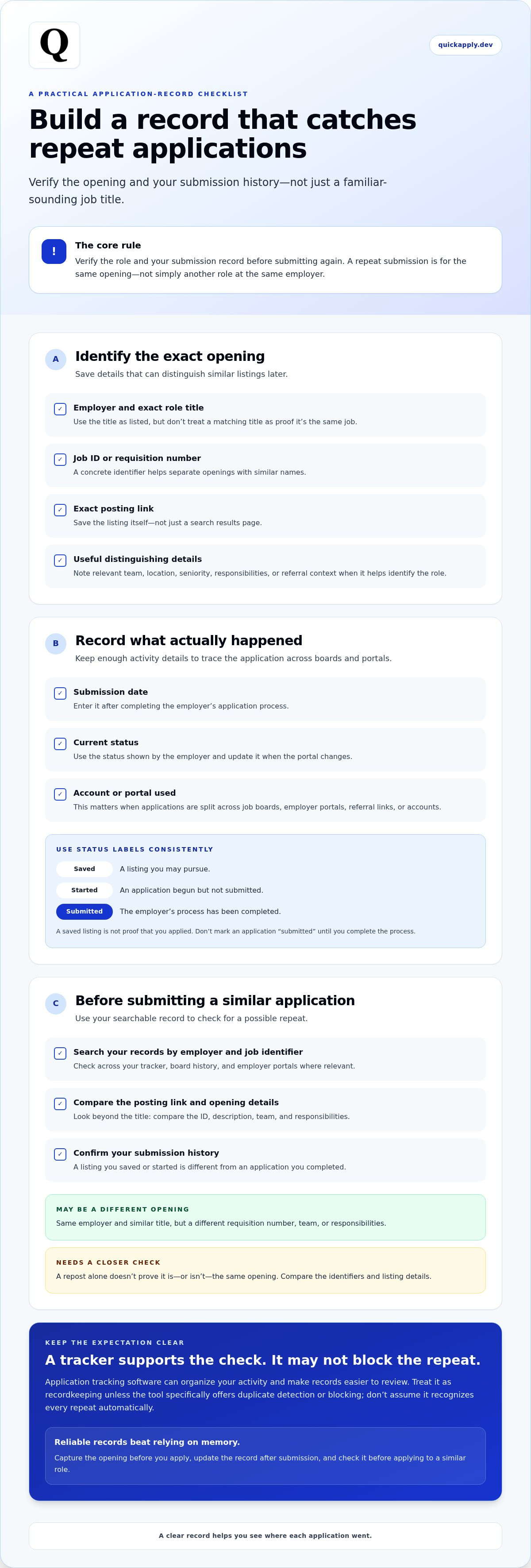
A pre-submit checklist for checking reposts and possible duplicate jobs
Run this check before sending an application, especially when a familiar title appears in your search results. Start with the employer, requisition number, exact posting link, and your own tracker. These details help distinguish a new opportunity from a listing you’ve already pursued.
Pause when identifiers match; verify carefully when they differ. A changed title or posting date alone doesn’t establish that a role is new. A matching title alone doesn’t prove it’s the same opening either.
- Confirm the employer. Check the company name and the portal or account where you’re applying.
- Compare the requisition number. Look for the same job ID in the listing and your records.
- Open the exact posting link. Compare it with the URL you saved, rather than relying on a search result or bookmark label.
- Search your tracker. Look up the employer and role identifiers, then check the existing status before continuing.
- Resolve any mismatch. If key details differ or your status is unclear, verify the listing and existing submission before sending another application.
How to check whether a repost is the same opening
Compare the requisition number first, then the exact posting URL and employer. If the ID is missing or changed, look beyond the title: review the team, seniority, and responsibilities. Are the core duties and level substantially the same, or does the listing describe a distinct role? A new posting date may reflect a refreshed listing, so don’t treat it as proof of a new opening by itself.
For example, a role with a new ID but the same team, level, and responsibilities deserves a closer look. A matching title tied to another team and different duties may represent a separate opportunity. Record the distinction so you can decide based on the details, not a quick glance.
What to do when a submission status is unclear
Open the employer’s candidate portal and find the role’s latest displayed status. Compare its details with the submission date and identifier in your records, then check any application confirmation you saved. If those records conflict, don’t submit again just to be safe. Note what’s unclear, keep the available details, and verify the existing application before deciding what to do next.
This brief pause makes software to prevent applying to the same job twice more useful: your tracker gives you a place to review activity, while the final comparison remains in your hands. Use QuickApply’s application tracker to organize your job-search activity.
Use QuickApply to keep your job search and application records organized
A tracker helps prevent accidental repeat submissions by keeping your application activity visible and easier to review. It gives you a place to organize what you’ve saved, started, and submitted, including roles you found through different boards and employer portals. It supports your verification process, but doesn’t replace it. QuickApply’s application tracker helps organize your search, while the employer’s candidate portal is where you can confirm whether a submission was received.
How to use a centralized tracker without losing the verification step
Build tracking into your routine. Add a role before you begin applying, then update its status after you finish. Before acting on a similar listing, search your records by employer and job identifier. If you find a possible match, compare the details and check the employer portal rather than submitting again based on memory alone.
- Before applying: Add the role and its identifying details to your tracker. Mark it as saved or in progress, not submitted.
- After applying: Update the status and date, then verify the application appears in the employer’s candidate account when available.
- Before a similar application: Search by employer and job identifier. Compare the listing with your record and review the portal if you’re unsure whether the first submission went through.
This distinction matters. A tracker makes your activity easier to review, but it can’t confirm what happened inside an employer’s system. Use both records: your tracker for an overview across your search, and the employer portal to verify a specific submission. That’s a practical workflow for software to prevent applying to the same job twice without assuming the software automatically detects or blocks repeats.
Start a more organized application workflow
Tracking and resume tailoring work well as connected steps. First, log the role so you can find it later. Then tailor your resume to the job description; QuickApply tailors a resume in about 30 seconds per job. After submitting, update your tracker. Your records stay tied to the roles you’re pursuing, while your application materials can be adapted for each opportunity.
QuickApply brings its application tracker together with resume tailoring, cover letter generation, interview practice, and career resources in one job-search platform. The tracker helps keep applications organized, so you can review your history before moving ahead and prepare materials for each opportunity.
QuickApply offers a free 3-day trial with no credit card required. Try QuickApply free for three days and bring more structure to your application process.
Make your next application more intentional
Turn your job search into a series of deliberate choices, not a race to submit more applications. Before investing time in a role, consider whether it fits the direction you want to take and gives you a clear reason to apply. Your records can help you see where your effort is going and decide what deserves your attention next.
The best software to prevent applying to the same job twice is part of a process you’ll actually maintain. Choose a tracking routine that fits how you search, keep it current, and use it to make your next move with confidence. Small, consistent checks leave more time to focus on presenting your skills well.
QuickApply brings job-search tools together to support an organized application workflow. Try QuickApply free for three days and bring your application preparation and tracking into one workflow.
Frequently Asked Questions
Can software automatically stop me from applying to the same job twice?
No, don’t assume any tool can prevent every duplicate submission. Software to prevent applying to the same job twice may make your records easier to review, but detection depends on what information the tool can access and whether your records are current. For example, a tracker may not know you applied through a separate employer portal. Use software to find possible matches, then verify them before submitting.
Is applying twice to the same job always a problem?
Not always, but a repeat can create confusing records or make it harder to track which application the employer is reviewing. The impact depends on the employer’s system and process. If you discover a possible duplicate after submitting, don’t rush to withdraw either application. First confirm they’re for the same opening. If you can’t tell from the portal and your records, use the employer’s official application contact channel to clarify.
What should I do if a company reposts a job I already applied to?
Compare the new listing with your original application before taking action. If it appears to be the same opening, keep your earlier record and avoid sending another application just because the listing is visible again. If the requisition identifies a distinct role, create a separate record and assess it on its own merits. This keeps your history clear and helps you explain the difference if asked later.
How can I tell whether my job application was actually submitted?
Look for a confirmation screen, an email receipt, or an application entry in the employer’s account. A filled-out form that’s still open, or a browser page that redirects unexpectedly, doesn’t necessarily mean the submission is complete. Save any confirmation details you receive. If you can’t find evidence of submission, check your account before trying again, so you don’t create a second application while the first is still processing.
Can I apply to two different jobs at the same company?
Yes, if they’re separate openings that fit your skills and goals. For instance, you might apply for a backend engineering role and a data engineering role at the same employer if your experience supports both. Make each application specific to that position rather than sending identical materials by default. Separate records also make it easier to track conversations and prepare for role-specific interviews.
What information should I save after applying for a job?
Save the employer, role, job identifier, posting link, submission date, and current status so you can identify the application later. Add the source where you found the listing and the version of your resume you used if those details help you manage follow-ups. Use a consistent date format and avoid storing sensitive information you don’t need. A clean record is easier to scan and maintain.
Does an employer portal show whether I already applied?
It may show your application history, but the information and layout vary by employer. Check the account and email address you used when applying, especially if you have multiple logins. Search by role title or requisition rather than relying only on a general status page. If the portal doesn’t display an older submission, that absence alone doesn’t prove you never applied; review your confirmation emails and personal records too.


