

An interview request lands, and you can’t remember which version of your resume that company received. Was it the skills-focused draft or the one with the updated project section? Tracking which resume was sent to which company solves this problem by linking every application to the exact file you submitted.
If your files have vague names and your application notes stop at “applied,” you’re not alone. Those gaps make follow-ups awkward and interview preparation harder than it needs to be. You don’t need a complicated job-search system. You need a repeatable process that captures the right details before they disappear into your inbox.
This guide shows you how to save distinct resume snapshots, name files so you can find them quickly, and log each application with its status and next follow-up date. You’ll also compare a spreadsheet with a dedicated application tracker, so you can choose a setup that fits your application volume and habits. Build the record as you apply, and you’ll know what each company saw when it’s time to follow up or prepare for an interview.
Key Takeaways
- Make tracking which resume was sent to which company part of your application workflow, so every submission has a clear record.
- Use a consistent resume ID and filename pattern to distinguish tailored versions without opening every file.
- Choose a spreadsheet, folders, or a dedicated tracker based on how much you apply and how quickly you need to find records.
- Save the final resume snapshot before submitting, then update the application record with its status and follow-up date.
- QuickApply can tailor resumes to job descriptions, generate a match score, and organize applications with its tracker. Record the exact file identifier you submitted so you can find it later.
Why tracking which resume you sent to each company prevents avoidable mix-ups
Resume files can look almost identical, even when the details that matter have changed. One version may emphasize product launches; another may foreground technical skills. Weeks later, a recruiter calls, and “final_resume_latest.pdf” doesn’t tell you which version the employer saw.
A resume-version log links each job application to the exact resume file submitted with it. That’s the core of tracking which resume was sent to which company: save the version identifier with the application record, not in a separate, disconnected folder. A resume is a document that summarizes your experience and qualifications, but each tailored copy can present them differently.
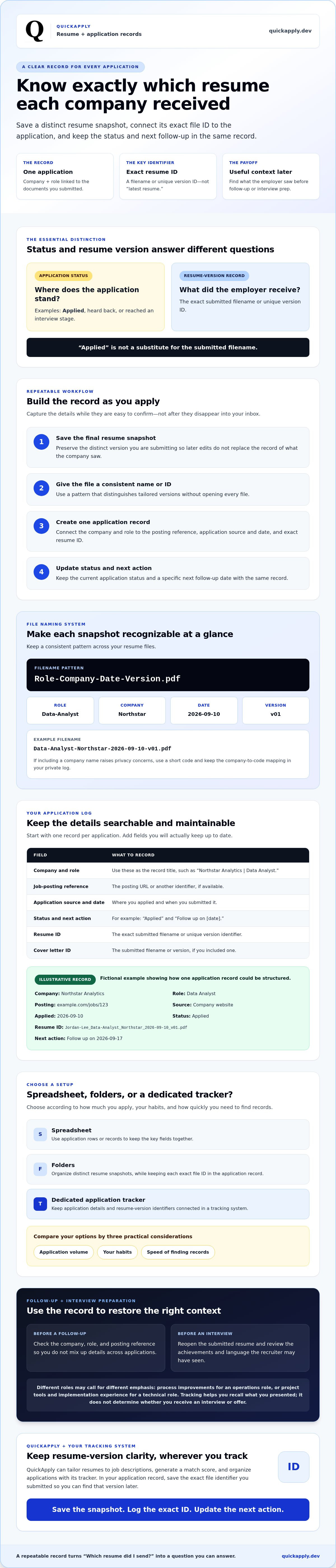
This record supports two related tasks. Application-status tracking tells you whether you’ve applied, heard back, or reached an interview stage. Resume-version tracking tells you what the employer received. Keep both in the same system if you can, but don’t treat “Applied” as a substitute for the submitted filename.
What details should you remember after submitting an application?
Capture enough context to find the posting and reconstruct the submission later. Record the company, role title, job-posting link or reference, submission date, and application channel, such as the company website or a job platform. Most importantly, save the exact resume filename or version ID. “Latest resume” isn’t a reliable identifier because it can change as you tailor files for other roles.
If you sent a cover letter, record its filename or version too. That gives you a fuller record of the documents associated with the application.
How version mix-ups affect follow-ups and interviews
Different roles call for different emphasis. An operations position might lead you to highlight process improvements, while a technical role could put project tools and implementation experience first. Those choices affect which examples and skills you’ve presented to the employer.
Before following up, check the application record. Confirm the role and posting so you don’t mix up details across companies. Before an interview, reopen the submitted resume and review the achievements and language the recruiter may have seen. That makes your preparation more specific. Tracking alone doesn’t determine whether you’ll get an interview or an offer.
Set up a resume and application log with fields you can maintain
A useful log is searchable, quick to update, and specific enough to identify each file later. Start with one record per application. Use the company and role as the record title, then add the details that distinguish that submission from the rest.
Choose fields that make each application searchable
Keep the core fields lean, and add more only if you’ll maintain them. Columbia University’s advice on setting up a job search tracker also highlights practical details such as a position title, posting URL, and application status.
- Company and role: the record title, such as “Northstar Analytics | Data Analyst.”
- Job-posting reference: the posting URL or another identifier, if available.
- Application source and date: where you applied and when you submitted it.
- Status and next action: for example, “Applied” and “Follow up on [date].”
- Resume ID: the exact filename or unique version identifier, not “latest resume.”
- Cover letter ID: the submitted filename or version, if you included one.
Illustrative record: Company: Northstar Analytics; role: Data Analyst; posting: example.com/jobs/123; source: company website; applied: 2026-09-10; status: Applied; resume ID: Jordan-Lee_Data-Analyst_Northstar_2026-09-10_v01.pdf; next action: follow up on 2026-09-17. These details are fictional and show how a record could be structured.
Once your template is set up, review this comprehensive job application process guide for more ways to organize your search.
Name and preserve resume versions consistently
Use one filename pattern across your files: Role-Company-Date-Version.pdf. For example, Data-Analyst-Northstar-2026-09-10-v01.pdf. If including a company name in filenames raises privacy concerns, use a short code and keep the company-to-code mapping in your private log. The aim is to create a unique, recognizable ID.
Before submitting, save the final resume as a separate snapshot in a dedicated folder. Record its filename or ID in the application entry. Don’t overwrite that copy when you make later edits; save each revision as a new version instead. Add a brief change note, such as “emphasized SQL reporting,” without copying sensitive personal or employer information into the note. This file discipline makes tracking which resume was sent to which company reliable, even as your working resume changes.
If you prefer a dedicated tool for organizing application activity, explore QuickApply’s application tracker. Keep the submitted snapshot in your own files and record its identifier so you can verify the exact version later.
Compare ways to match resumes to companies
The right system is the one you’ll update consistently and search when you need it. A spreadsheet offers control, folders keep files close at hand, and a dedicated tracker can centralize application details. Compare each option by asking one key question: can you quickly connect an application to the exact resume version you submitted?
| Method | Setup effort | Searchability | Version traceability | Best suited to |
|---|---|---|---|---|
| Spreadsheet | Low | Strong with filters and consistent columns | Strong if you enter a filename or version ID and preserve each file | Job seekers who want a simple, customizable system |
| Notes or folders | Low at first | Can become difficult as entries and files accumulate | Depends on clear naming and links between notes and files | Low application volume or people who prefer manual organization |
| Dedicated application tracker | Some setup to learn its fields and workflow | Can centralize employer, role, status, and next actions | Varies. Check whether it supports a resume-version field or file links | People managing applications in a dedicated system |
The table is a starting point, not a feature guarantee. Tracker capabilities vary, so inspect the fields and file-handling options before moving your records. A polished interface won’t solve version confusion if you can’t store or search a resume ID for each application.
When a spreadsheet is enough for resume tracking
A spreadsheet is a practical starting point if you want flexibility without adopting another tool. Use consistent column names, then filter by company, role, status, or resume ID to retrieve a record. The trade-off is manual upkeep: you must update the application row and keep the corresponding resume snapshot organized yourself.
When a dedicated job application tracker makes sense
Choose a dedicated tracker if you want employer, role, status, and next-action records in one place. Before adopting it, verify that you can add a searchable resume-version ID or attach a file to each application. QuickApply provides an application tracker for organizing job-search activity, but check how it handles submitted resume files or identifiers rather than assuming it saves the exact file. Its resume-tailoring tools can help prepare role-specific drafts, but tailoring is not a replacement for recording what you actually submitted.
Bottom line: Whatever method you choose for tracking which resume was sent to which company, make sure every application has a searchable resume-version field. That’s the essential link between the application record and the file.
How to record the exact resume sent to every company
Make the resume snapshot before you open the application form. This prevents a common tracking failure: submitting a file, editing it later, then being unable to confirm what the employer received. Use this workflow for each application, whether you track it in a spreadsheet or an application tool.
- Review the role-specific draft. Confirm the company and role are correct, then check that the skills and experience highlighted match the job description. For help refining the draft, see this practical guide to tailoring a resume to a job description. Treat the tailored draft as a new version, not a replacement for previous submissions.
- Save a final snapshot. Export the document in the format required by the employer. Give it a unique filename, such as Data-Analyst-Northstar-2026-09-10-v01.pdf, and store it in your designated applications folder. Keep this submitted copy unchanged. If you revise the resume later, create a new version.
- Record the resume ID before uploading. Copy the exact filename or version identifier into the application record. This links the application to the snapshot before files and browser tabs start to blur together.
- Submit, then complete the record. Add the submission date, channel, role title, and any confirmation number or reference. If you sent a cover letter, record that filename too. Update the status to “Applied” and set a follow-up reminder that respects the employer’s stated timeline. If no timeline is given, choose a reasonable date for your own check-in.
- Review the entry. Confirm that the company, role, status, resume ID, and next action are filled in. Make sure the snapshot opens and matches the version you intended to submit.
When a recruiter responds, update the status and next action without changing the original submission date or resume ID. Add a note for a screening call or interview, but preserve the original submission details as your record. That way, tracking which resume was sent to which company stays reliable as the application moves through new stages.
If you want one place to organize application activity, try QuickApply’s application tracker. Keep recording or verifying the submitted resume identifier for each entry so you know which snapshot to revisit.
Use QuickApply and your tracking system without losing resume-version clarity
Resume tailoring and application tracking handle different parts of the workflow. Tailoring helps you prepare a role-specific resume. Your log records which final version you actually submitted. Keep those steps connected, but don’t assume a tracker stores or links the uploaded file unless you’ve confirmed that feature.
Match resume tailoring with application records
QuickApply can tailor resumes and cover letters to job descriptions, generate a match score, and provide an application tracker. Use the tailoring tools to prepare a version for a specific role, then review the document before submitting. A match score can help you assess how closely a draft aligns with a job description. Treat it as a reference point, not a prediction of hiring results.
After finalizing the resume, preserve a separate snapshot and give it a unique version ID. Add that ID to the application record alongside the role and employer. This links the tailored draft to the submission, even if your working resume changes later. If the tracker doesn’t support file-level links, keep the snapshot in your own organized file system and record its exact filename in the relevant entry.
Choose a workflow you will keep using
Evaluate the tracker against your actual process, not just its feature list. Can you search applications by company or role? Can you record status and next actions? Is there a dedicated field for the resume filename or version ID? Before relying on automatic file storage or resume association, verify how the tool handles those specific tasks.
QuickApply’s application tracker can help organize job-search activity, while its resume-tailoring tools support the creation of distinct versions. For reliable tracking which resume was sent to which company, keep the submitted snapshot unchanged and confirm that its identifier is recorded for each application. The system can be simple. It just needs to preserve the link between employer, application, and resume version.
Want to see whether the workflow fits your search? Explore QuickApply's resume and application tools.
Make every application easier to pick up where you left off
A dependable job-search system connects each application to the exact resume snapshot you submitted. Save a uniquely named copy, record its ID beside the company and role, then update the status and follow-up date without changing the original submission details. That’s the practical core of tracking which resume was sent to which company.
Choose a spreadsheet or application tracker you’ll keep current. Before relying on any tool, check that it lets you record or search the resume version for each application. QuickApply can tailor resumes to specific job descriptions, provide a match score to help assess fit, and organize job-search activity with its application tracker. The score is a reference point, not a hiring prediction. Check how the tracker handles submitted resume files or IDs.
Ready to streamline your workflow? Explore QuickApply's resume and application tools. With a clear process and records you can trust, you can follow up and prepare with more confidence.
Frequently Asked Questions
How do I keep track of which resume I sent to each company?
Save an unchanged copy of each resume before submitting, then record its filename or version ID beside the matching application. Include the company, role, submission date, application source, status, and next action. This creates a searchable record instead of relying on memory. A consistent filename, such as Role-Company-Date-Version.pdf, makes it easier to find the snapshot when a recruiter contacts you.
Can a job application tracker show which resume I submitted?
It can if the tracker lets you record or search a resume filename, version ID, or file link for each application. Features vary, so check how a tool handles resume versions before relying on it. QuickApply provides an application tracker for managing job-search activity, but confirm whether it stores or links the exact submitted resume. If not, keep the snapshot in your own files and enter its identifier in the application record.
What should I include in a resume tracking spreadsheet?
Include company, role title, job-posting URL or reference, application source, submission date, status, resume filename or version ID, and next action or follow-up date. Add a cover letter identifier if you submitted one. Keep column names consistent so filters work reliably. For example, use a dedicated “Resume ID” column rather than entering filenames inconsistently in notes. Store submitted resume snapshots in a clearly named folder.
How should I name different resume versions?
Use one pattern that identifies the role, company or private company code, date, and version number. For example: Data-Analyst-Northstar-2026-09-10-v01.pdf. If including an employer’s name in the filename creates a privacy concern, use a short code and keep its meaning in your private application log. Never overwrite a submitted snapshot. Save later edits as a new version so the original remains easy to verify.
Should I use a spreadsheet or an app to track job applications?
Choose a spreadsheet if you want a customizable system and are comfortable updating records and files manually. Choose an app if you prefer application details, statuses, and next actions in a dedicated tracker. Either option works if you’ll maintain it. Before choosing an app, check whether it supports a searchable resume-version field or file association. The essential feature is a reliable link between each application record and the resume you submitted.
How do I prepare for an interview if I cannot remember which resume I sent?
Search your email for the application confirmation, check the employer’s application portal, and review your resume folder for a file saved around the submission date. Compare likely versions against the job posting and any cover letter you sent. If you still can’t identify the exact file, prepare from the version that best matches the role, but don’t claim you submitted specific details unless you can verify them. Add a record for future applications.
Should I make a new resume for every company?
Not necessarily. Start with a strong master resume, then tailor relevant details to the role and employer rather than rewriting everything from scratch. Different positions may call for different emphasis, such as project outcomes for one role and technical skills for another. Save each distinct version you submit and record its identifier. This keeps your materials relevant while making it possible to confirm what each employer received.


